 FanCam AI
Photo tips
Which photo should you use for an AI fan cam?
Start with a clear photo of one person or pet, with the face easy to see. Check the lighting, crop and obstructions before you generate. A useful reference gives the AI more to work with, but cannot guarantee an identical face or a perfect result.
This guide focuses on choosing your input photo. If you already have one, follow the step-by-step creation guide for the complete process.
1. Make the subject easy to identify
Pick a photo where you can immediately tell who the subject is. For a person, look for visible eyes and facial features. For a pet, check that the eyes, muzzle and distinctive markings are visible.
If you are choosing between several photos, begin with one that has a clear subject rather than a crowded group shot. The useful question is not whether it is your favourite photo, but whether it shows the details you want the video to preserve.
Use a photo of yourself, your own pet, or someone who has agreed to this use. Before making a friend’s clip, agree on where the finished video will be shared.
2. Check the light and detail
Zoom in on the input before uploading it. If the face is blurred, heavily filtered or lost in shadow, another photo may offer a clearer starting point. Bright light alone is not enough: glare and harsh shadows can also hide detail.
A compressed screenshot may show less detail than the original image. If you have both, compare them. Choose based on the detail you can actually see rather than chasing a particular file size.
3. Review the crop
Keep enough of the subject visible to understand their features. Avoid a crop that cuts across the face or pushes the subject into a tiny corner of the frame. In a full-room photo, check whether your pet is large enough to see clearly.
Your input does not need to look like a stadium broadcast. FanCam AI generates the scene from the photo and the settings you choose. You are selecting a reference for the subject, rather than supplying finished crowd footage.
A real example: the dog on the sofa
Our dog fan cam example shows the starting photo alongside the finished stadium clip. The input is a poodle sitting on a sofa. The generated scene shows the dog in a stadium crowd, wearing a blue jersey and holding popcorn.
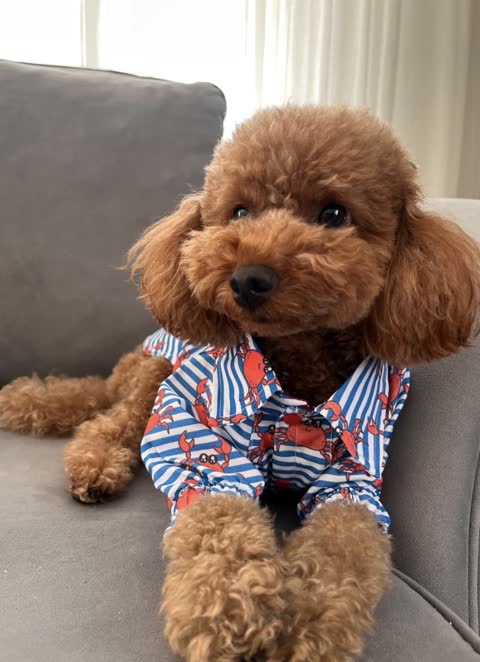
Compare the face and coat, then notice how much of the surrounding scene has changed. This pair is one example you can inspect, not a promise that every pet photo or generated clip will behave the same way.
Before you spend credits
- Can you clearly see the face and distinctive features?
- Is one person or pet the obvious subject?
- Is the photo reasonably sharp when you zoom in?
- Are filters, sunglasses or other obstructions hiding important details?
- Do you have permission to use and share the photo?
- Have you checked the current generation cost in the app?
FanCam AI is free to download, but generating a video uses purchased credits. Watch the examples and check the current cost in the app before you generate.
Once you have chosen a photo, continue with the creation guide or see the FanCam AI overview. Review your finished clip before sharing it, and make clear that the stadium scene is AI-generated.